What Is An Audio Interface and Do You Need One?
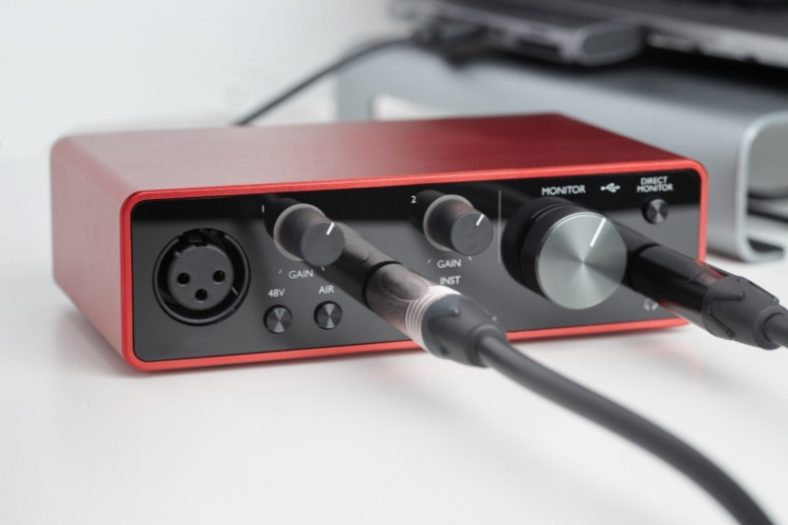
Audio interfaces are one of the most useful tools for audio production, especially if you’re making music at home. Nowadays, a laptop, a microphone, and an audio interface are enough to start recording music inside your bedroom.
But what are audio interfaces exactly, and what are they used for?
Contents
- What is an audio interface?
- What is the purpose of an audio interface?
- How to use an audio interface?
- How do you hear yourself while recording?
- Do you need an audio interface if you have a USB mic?
- Choosing the right interface
- How many inputs and outputs do you need?
- Types of audio interfaces
- Choosing an audio interface with quality drivers
- Can you record on a budget audio interface?
- Is a sound card the same as an audio interface?
- Summary
What is an audio interface?
An audio interface is a piece of hardware used to convert analog sound signals into digital audio and route audio from your computer to your headphones and speakers.
Audio interfaces combine recording and monitoring connections in a digital-audio setup, with features that vary by model.
If you’re recording XLR microphones or plugging a guitar directly into your computer, an audio interface is extremely convenient. If you’re making music entirely with software instruments, you can start with your computer’s built-in audio.
What is the purpose of an audio interface?
The purpose of an audio interface is to record and process sound via a computer.
Their main function is to convert sound signals into digital data, but they’re often viewed as a convenient tool for recording and monitoring audio through the computer.
In the home studio era, audio interfaces are the bread-and-butter of any music producer’s setup. They enhance sound quality, they’re perfect for recording audio to your favorite DAW or music software, and they can be used as the point of connection between your computer and a set of high-quality speakers or studio monitors.
How to use an audio interface?
Connect the audio interface to your computer, install the manufacturer’s sound driver if your operating system requires it, and select the interface as the input and output device in your DAW’s settings. Connect headphones or powered studio monitors to the interface’s outputs, and you’re ready to go! Passive speakers need a separate amplifier.
To use an audio interface for recording, connect an XLR microphone to a microphone input. Use an instrument/Hi-Z input for a guitar or bass, and a line input for a keyboard, mixer output, or external preamp. Check the labels rather than the socket’s position: inputs can be on the front or back.
Start with low input gain, select the matching DAW input, and record-enable the track. Play or sing the loudest passage and turn the gain up until the input meter shows a healthy level without clipping. Our guide to setting your mic’s gain level explains this in more detail. Turn on 48V phantom power only if your microphone requires it, following its manual; connect it with phantom power off and keep monitoring volume low while switching.
For more information about the different aspects of recording using the inputs of an audio interface, please check this line-level differences article.

How do you hear yourself while recording?
Direct monitoring lets you hear the interface’s input through its headphones or monitor outputs without waiting for the sound to travel through your DAW. Turn off the track’s software input monitoring when using direct monitoring, otherwise you may hear a doubled or delayed voice. To hear DAW effects while performing, use software monitoring instead and choose a buffer size your computer can run without clicks.
The input gain sets the level being recorded. The headphone and monitor volume controls set how loudly you listen, so turning up your headphones does not fix a quiet recording. Use headphones while recording an open microphone to avoid speaker bleed and feedback.
Do you need an audio interface if you have a USB mic?
If you have a USB microphone, you can record audio into your computer without an audio interface, as USB mics can convert sound signals into digital data.
For this reason, you can use a USB mic as a standalone piece of recording equipment even if you don’t own an audio interface.
Not having to buy a separate audio interface to record digital audio is the biggest plus of having a USB mic. The preamp and analog-to-digital conversion are built into the microphone, so recording quality depends on the particular model, your room, and your microphone technique.
USB mics can achieve excellent results for vocals, speech, and demos. An interface with XLR microphones gives you more flexibility when you want to change microphones, record several sources at once, or connect other instruments. A USB-only microphone plugs into the computer, not into an interface’s analog input.
Choosing the right interface
Audio interfaces can go from very affordable to super expensive, but they all serve the same basic purpose: to allow you to record and process sound via a computer. This said, selecting the right interface is about understanding your needs as a music producer.
Are you a guitar-and-vocals singer-songwriter trying to make a demo in your bedroom? In this case, a basic audio interface with a mic input and an instrument input should be enough. Two mic inputs are useful if you’re using a microphone on both your voice and guitar. Are you an audio engineer recording bands in a professional studio? Then count how many sources you need to record separately at the same time, including drum microphones.
My point is that you should first understand what your goals and needs as a musician are, and only then pick the audio interface that suits you better.
These three highly recommended audio interfaces should give you an idea of what’s out there:
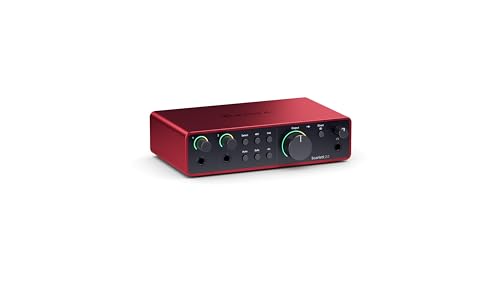
The Focusrite Scarlett 2i2 (4th gen) has become a standard product in the audio interface world, especially since the 3rd gen was so popular. Perfect for beginners and home-studio musicians, the Focusrite Scarlett 2i2 works as the ideal introduction to the world of audio recording.
The Focusrite Scarlett 2i2 (4th gen) is a market leader because it offers good drivers, ultra-low-noise mic preamps, and all the essential features of an audio interface at a cost everybody can afford.

If the Focusrite Scarlett 2i2 (4th gen) is the number-one audio interface for newbies, the Apollo Twin MKII is the professional-studio standard. It’s pricey without going over the top and is developed by the renowned engineers of Universal Audio, arguably the most reputable audio signal processing hardware company in the world.
Two things make Apollo Twin MKII stand out: its Console software for low-latency input monitoring, and its onboard DSP for compatible UAD plugins. Console avoids the DAW’s monitoring buffer, but the computer still needs to meet Universal Audio’s system requirements.

If you’re working with a live band, or you feel the need to record multiple instruments simultaneously, you should give MOTU 16A AVB a look. This model includes 16 analog line inputs, 16 analog line outputs, and both Thunderbolt and USB connectivity. It does not have built-in microphone preamps, so microphones need external preamps or suitable mixer outputs before reaching its line inputs.
The MOTU 16A AVB is not the ultimate 16-input audio interface in the market, but it’s probably the one that offers the best quality-price ratio.
How many inputs and outputs do you need?
To answer this question, consider your recording process. Are you a solo musician, recording one instrument at a time? Or do you like to get your friends together in a room and record everybody playing simultaneously? The number of inputs you require is directly related to your recording style.
In my experience, two inputs tend to be more than enough if you’re an electronic music producer working with vocals and adding occasional acoustic instruments to your songs. For a live band setup, you should need a minimum of four to eight inputs.
The same goes for the outputs. Two balanced line-outs should be enough for a pair of powered studio monitors unless you want separate cue mixes or more speaker connections. A stereo keyboard uses two input channels; MIDI ports carry performance data, not the keyboard’s audio. For setup ideas, see our mixer-to-interface connection guide.
Types of audio interfaces
USB audio interfaces are by far the most common, but there are at least four types of audio interfaces: USB, Thunderbolt, FireWire, and PCIe. Before selecting your next audio interface, don’t forget to check the available ports on your computer.
USB
Most computers come with a USB port, which helps to make USB audio interfaces the most popular option in the market. Many small interfaces are bus-powered, while larger models may need an external power supply. Check the power requirements and use a data-capable cable; a USB-C socket alone does not mean Thunderbolt support.
Thunderbolt
Thunderbolt audio interfaces are available for compatible Macs and Windows computers. They can offer low latency and high channel counts, but check the interface’s supported operating systems, Thunderbolt version, drivers, and adapter requirements first.
FireWire
FireWire audio interfaces are older equipment, and support on modern computers can be limited. Check the manufacturer’s driver and operating-system compatibility before buying one; FireWire does not automatically make recording more reliable than a current USB interface.
PCIe
PCIe audio interfaces need to be installed into your computer’s motherboard, as PCIe is an internal card-based interface. For this reason, PCIe audio interfaces aren’t great for laptop users.
Choosing an audio interface with quality drivers
The drivers of your audio interface help your computer communicate with the hardware. Good drivers support stable recording and low latency at practical buffer sizes. They do not amplify microphone signals or add warmth: that job belongs to the preamp, while the converters turn analog audio into digital data and back again.
However, the price tag shouldn’t be the ultimate metric for evaluating an audio interface’s drivers. Check that the manufacturer supports your operating system and provides the driver your DAW needs. Audient iD4, for instance, uses a mic preamp design from Audient’s recording consoles; that is a hardware feature, separate from its software driver.
Can you record on a budget audio interface?
With enough talent and hard work, you can come up with a number-one song using even the most basic of audio interfaces.
Recording equipment makes a big difference, but it’s not what makes a song great. Sure, Bruno Mars’ voice sounds a lot better when he’s singing with his award-winning Sennheiser SKM5200 microphone. But would he be any less talented if he recorded his songs using an iPhone?
In the end, good and bad music is defined by a musician’s prowess, not by the tools he or she owns.
Is a sound card the same as an audio interface?
Both sound cards and audio interfaces are used to convert signals into digital audio data. However, they’re very distinctive because sound cards tend to be installed in a computer’s motherboard beforehand, while audio interfaces work as add-on external sound cards.
To put it simply, think of sound cards as integrated circuits installed inside your computer and of audio interfaces as a piece of hardware that contains not only a sound card but a series of additional features.
For further clarification, please take a look at this article on sound cards, onboard audio, and audio interfaces.
Summary
So, do you need an audio interface? If you’re making music at home, I would highly recommend it. You can do a lot with even the most basic of audio interfaces and take your songs and demos to the next level.
Audio interfaces make for the perfect point of connection between you—the artist—and your computer—the platform in which your art is ultimately produced. Getting an audio interface will inspire you to put more of yourself into your music.