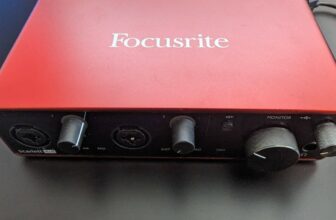
How To Connect A Mixer To An Audio Interface
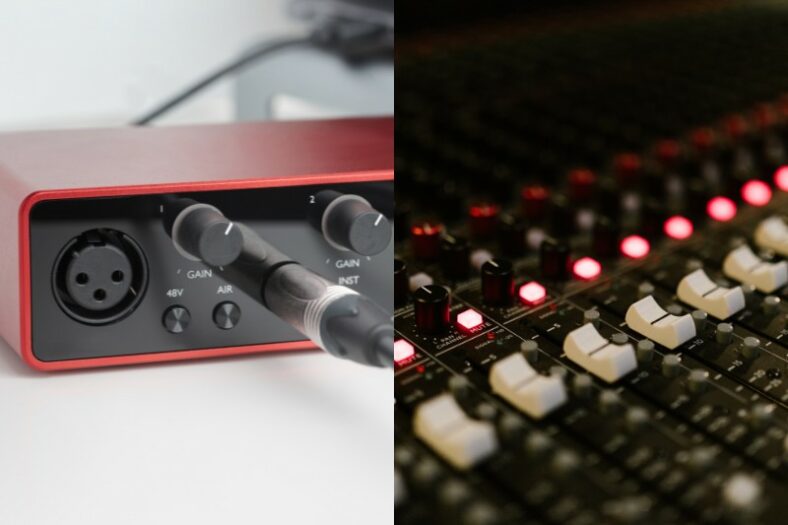
To connect a mixer to an audio interface for recording, connect the mixer’s line-level output to the interface’s line input. For a stereo mix, connect the mixer’s left and right outputs to two line inputs. You can also send the interface’s line outputs to the mixer’s line inputs for playback, but keep that return out of the recording feed to avoid a feedback loop.
By connecting the mixer to an audio interface, you can process signals in the mixer before they get to the interface and, eventually, to your laptop or computer. This way, you can combine multiple instruments into one mono or stereo recording. Once they are combined at the mixer output, you cannot adjust each instrument separately in the DAW as though it had its own recorded track.
Connecting an audio interface to the mixer can also be useful, as it allows you to send computer playback or an interface monitor mix into the mixer. This is generally used in live performances or when the mixer handles your monitoring. The interface must be configured to send the desired signal to its outputs.
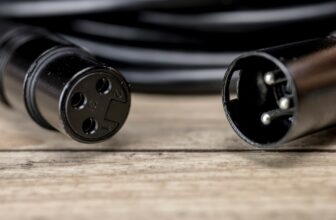
Mixers and audio interfaces can be connected using various types of cables, the most common being XLR cables, quarter-inch jack cables, and RCA cables.
Choose cables by the signal level and socket labels, not just by what fits. For example, a mixer’s balanced XLR line output can connect to a balanced 1/4-inch line input with an XLR-to-TRS cable. On many interfaces, the XLR part of a combo socket is a mic input, so XLR-to-XLR can overload it. Check the manuals for both devices and our guide to line level versus mic level.
Contents
Connect a stereo mixer output step by step
- Turn down monitor and headphone volume, then switch the equipment off before cabling. Locate the mixer’s main/stereo line outputs and two interface line inputs. Never connect a powered mixer’s speaker output to an interface.
- Connect mixer Left to interface input 1 and mixer Right to input 2 with two suitable cables. Use balanced connections where both devices support them. A balanced TRS line connection carries one channel, so one cable does not carry the whole stereo mix.
- Set the interface inputs to Line rather than Instrument/Hi-Z where a choice is available. Keep interface phantom power off on this connection; power condenser microphones from the mixer’s mic inputs only when required. A line input does not necessarily bypass the interface’s variable-gain circuit.
- Power up with listening volume low. Set each mixer channel’s gain using its meter or PFL/solo function as the manual directs. Start the main fader or level control near its unity/0 mark, if provided, and keep the mixer’s bus from clipping.
- Select the interface in your DAW and record the input 1/2 pair on a stereo track. Alternatively, use two mono tracks panned left and right. Check the loudest passage, keeping the DAW input peaks comfortably below 0 dBFS. Adjust mixer output and interface line gain as needed; lowering a DAW fader cannot undo input clipping.
- Record a short test. Listen for distortion, hum, missing channels, or a reversed left/right connection before starting the full take.

Can you record every mixer channel separately?
The main left/right outputs produce a stereo mix, even if you have ten instruments plugged into the mixer. Separate DAW tracks require separate mixer direct outputs, suitable subgroup/aux outputs, or a multitrack USB connection, with enough interface channels for the signals you want to capture. Do not assume an insert socket is a normal direct output; its wiring and signal routing are model-specific.
A USB mixer may already be an audio interface, so you may be able to connect it directly to the computer. Check its USB channel count: Yamaha’s MG10XU sends the stereo mix over USB, while a multitrack USB mixer can provide individual channels. A USB socket alone does not guarantee multitrack audio recording.
Avoid monitoring and feedback problems
If you return the interface’s outputs to the mixer while also recording the mixer, do not route that playback channel into the same output bus feeding the interface. Use a separate monitor/control-room path or another routing arrangement supported by your mixer. Otherwise, the computer’s playback can be recorded again or circulate into a loud feedback loop.
Listen through the mixer or the interface’s direct monitoring, with DAW input monitoring off, or use DAW monitoring on its own. Hearing both paths can produce an echo. For a mono recording, use a mono output or bus supported by the mixer; do not join left and right outputs together with a passive Y cable.